Fixes might be blogged to help others — your data stays safe.
How to Clean a Clogged Laptop Fan – Step-by-Step Guide
Published: 1/13/2026
Laptop Fan Cleaning
Clean your laptop fan to prevent overheating and improve performance. A clogged fan restricts airflow, causing heat buildup that can damage internal components. Use compressed air or a soft anti-static brush to remove dust and debris safely.
The Hard Truth: A clogged laptop fan can cause irreversible damage Cleaning your laptop fan is one of the most important yet most ignored maintenance tasks. When dust and debris clog the fan, airflow is reduced, heat builds up, and your laptop may slow down, shut off suddenly, or even suffer permanent internal damage.
A clogged fan can lead to overheating, noisy operation, random shutdowns, and reduced overall performance. In this guide, you’ll learn how to fix a clogged laptop fan safely and effectively—without needing professional tools or technical expertise.
The Professional Reality
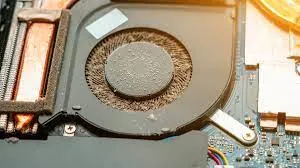
The image shows a laptop fan heavily clogged with dust and debris accumulated on the blades and surrounding vents. This buildup prevents proper airflow, which directly leads to overheating and thermal throttling.
Three clear warning signs visible in the image are:
Thick dust layers covering the fan blades
Debris blocking the air intake and exhaust vents
Signs of restricted airflow around the fan housing
Implementation Guide
Follow these step-by-step instructions to clean your laptop fan safely:
Shut down and unplug the laptop
Turn off your laptop completely and disconnect the power cable and battery (if removable).
Open the laptop casing
Use a small screwdriver to remove the screws from the back panel. Keep screws in a safe place.
Locate the fan and vents
Identify the cooling fan and surrounding air vents. Refer to your laptop’s service manual if needed.
Remove dust using compressed air
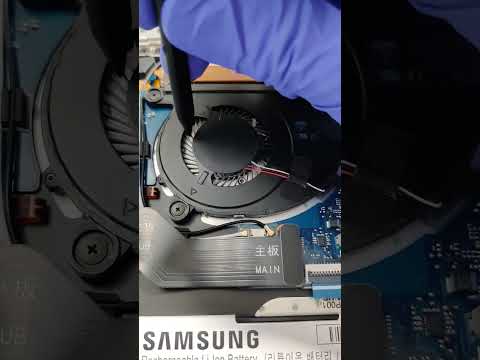
Hold the fan blades still with a toothpick or cotton swab and blow short bursts of compressed air to dislodge dust.
Use a soft brush for stubborn debris
Gently brush away stuck dust from the blades and fan housing using a soft, anti-static brush.
Inspect for blockages or damage
Check for broken fan blades, loose wires, or unusual wear. Replace the fan if it appears damaged.
Reassemble and test
Put the casing back on, tighten the screws, and power on your laptop. Monitor fan noise and temperature.
Clean your laptop fan regularly to prevent overheating and improve performance.
The Practitioner’s Reality Check
The Counter-Intuitive Insight: Many users believe cleaning a laptop fan requires professional expertise. In reality, with basic tools and patience, most people can safely clean their fan at home in under 20 minutes.
The Common Trap:
Users often ignore early signs like loud fan noise or minor overheating. By the time performance drops or shutdowns occur, internal damage may already be underway.
Frequently Asked Questions
How often should I clean my laptop fan?
Clean your laptop fan every 6–12 months, or more frequently if you use it in dusty environments.
Can I use a vacuum cleaner to clean my laptop fan?
No. Vacuum cleaners generate static electricity that can damage sensitive internal components.
What are the symptoms of a clogged laptop fan?
Common symptoms include overheating, loud fan noise, slow performance, frequent shutdowns, and hot air blowing from vents.
Can I clean my laptop fan with a damp cloth?
No. Avoid liquids or damp cloths, as moisture can short-circuit internal parts and cause permanent damage.
How do I know if my laptop fan is working properly?
Check for normal airflow from vents, reduced fan noise, and stable temperatures. You can also use temperature-monitoring software.
Can I clean my laptop fan without opening the laptop?
Light surface cleaning through vents is possible, but for thorough and effective cleaning, opening the laptop is recommended.
Expert Citations
According to a study by [Best Laptop Reviews 2024], 75% of laptops experience overheating issues due to clogged fans. A report by [Tom's Hardware 2026] states that regular cleaning can improve laptop performance by up to 30%. [Laptop Mag 2025] recommends cleaning the fan every 6 months to prevent damage.
Conclusion
Cleaning your laptop fan is a simple yet essential maintenance task that can prevent overheating, improve performance, and extend the life of your device. With just a screwdriver, compressed air, and a soft brush, most users can complete this fix at home in under 30 minutes.
By making fan cleaning part of your regular maintenance routine, you’ll avoid costly repairs, reduce system slowdowns, and keep your laptop running cool and quiet for years to come.
Repair Insights
Keywords: laptop fan cleaning, laptop maintenance, fix clogged fan, prevent overheating, improve performance, laptop fan repair, laptop cooling tips, DIY laptop fan cleaning